Three years ago I explained how we can use a couple of undocumented hidden properties of the legend in order to add a legend title (the legend object had no Title property back then – this was only added in a later Matlab release, perhaps as a result of my post). Today I will expand on that article by explaining the plot legend’s internal graphics hierarchy, how we can access each of these components, and then how this information could be used to customize the separate legend components. Note that the discussion today is only relevant for HG2 legends (i.e. R2014b or newer).
Let’s start with a simple Matlab plot with a legend:
hold all;
hLine1 = plot(1:5);
hLine2 = plot(2:6);
hLegend = legend([hLine1,hLine2], 'Location','SouthEast');
hLegend.Title.String = 'MyLegend';
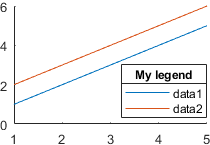
Standard Matlab legend

| Id in screenshot | Accessed via | Object type | Description | Important properties |
|---|---|---|---|---|
| 1 | hLegend.Title | Text | Title of the legend | Visible, String, Color, FontSize, FontWeight. |
| 2 | hLegend.TitleSeparator | LineStrip | Separator line between title and legend entries. Only appears when title is set. | Visible, LineStyle, LineWidth, ColorData (4×1 uint8) |
| 3 | hLegend.BoxEdge | LineLoop | Box (border) line around the entire legend (including title) | Visible, LineStyle, LineWidth, ColorData (4×1 uint8) |
| 4 | hLegend.EntryContainer.NodeChildren(2) | LegendEntry | Entry row in the legend, corresponding to hLine1 | Icon, Label, Object (line object in main axes) |
| 5 | hLegend.EntryContainer.NodeChildren(1) | LegendEntry | Entry row in the legend, corresponding to hLine2 | Icon, Label, Object (line object in main axes) |
| 6 | hLegend.EntryContainer.NodeChildren(1).Label | Text | Label of legend entry | Visible, String, Color, FontSize, FontWeight |
| 7 | hLegend.EntryContainer.NodeChildren(1).Icon | LegendIcon | Icon/marker of legend entry | Visible, Transform.Children.Children (LineStrip object) |
A pivotal object of the legend group are the LegendEntry items, one per legend row:
>> hLegendEntry = hLegend.EntryContainer.NodeChildren(1);
>> get(hLegendEntry)
              Children: [3×1 Graphics]
                 Color: [0 0 0]
                 Dirty: 0
             FontAngle: 'normal'
              FontName: 'Helvetica'
              FontSize: 8
            FontWeight: 'normal'
      HandleVisibility: 'on'
               HitTest: 'on'
                  Icon: [1×1 LegendIcon]
                 Index: 0
           Interpreter: 'tex'
                 Label: [1×1 Text]
            LayoutInfo: [1×1 matlab.graphics.illustration.legend.ItemLayoutInfo]
                Legend: [1×1 Legend]
              Listener: [1×1 event.listener]
                Object: [1×1 Line]
               Overlay: [1×1 TriangleStrip]
          OverlayAlpha: 0.65
                Parent: [1×1 Group]
           PeerVisible: 'on'
         PickableParts: 'visible'
              Selected: 'off'
    SelectionHighlight: 'on'
               Visible: 'on'
       VisibleListener: [1×1 event.proplistener]
Each LegendEntry contains a back-reference to the original graphics object. In my example above, hLegend.EntryContainer.NodeChildren(2).Object == hLine1, and hLegend.EntryContainer.NodeChildren(2).Object == hLine1. Note how the default legend entries order is the reverse of the order of creation of the original graphics objects. Naturally, we can modify this order by creating the legend py passing it an array of handles that is ordered differently (see the documentation of the legend function).
To get all the original graphic objects together, in a single array, we could use one of two mechanisms (note the different order of the returned objects):
% Alternative #1
>> [hLegend.EntryContainer.NodeChildren.Object]'
ans =
  2×1 Line array:

  Line    (data2)
  Line    (data1)

% Alternative #2
>> hLegend.PlotChildren
ans =
  2×1 Line array:

  Line    (data1)
  Line    (data2)
For some reason, accessing the displayed graphic line in LegendEntry‘s Icon is not simple. For example, the LineStrip object that corresponds to hLine2 can be gotten via:
hLegendEntry = hLegend.EntryContainer.NodeChildren(1);
hLegendIconLine = hLegendEntry.Icon.Transform.Children.Children;  % a LineStrip object in our example
I assume that this was done to enable non-standard icons for patches and other complex objects (in which case the displayed icon would not necessarily be a LineStrip object). In the case of a line with markers, for example, hLegendIconLine would be an array of 2 objects: a LineStrip object and a separate Marker object. Still, I think that a direct reference in a hLegend.EntryContainer.NodeChildren(1).Icon property would have helped in 99% of all cases, so that we wouldn’t need to pass through the Transform object.
Anyway, once we have this object reference(s), we can modify its/their properties. In the case of a LineStrip this includes LineStyle, LineWidth, ColorData (4×1 uint8), and VertexData (which controls position/length):
>> get(hLegendIconLine(end))  % LineStrip
          AlignVertexCenters: 'on'
             AmbientStrength: 0.3
                ColorBinding: 'object'
                   ColorData: [4×1 uint8]
                   ColorType: 'truecolor'
             DiffuseStrength: 0.6
            HandleVisibility: 'on'
                     HitTest: 'off'
                       Layer: 'middle'
                     LineCap: 'none'
                    LineJoin: 'round'
                   LineStyle: 'solid'
                   LineWidth: 0.5
               NormalBinding: 'none'
                  NormalData: []
                      Parent: [1×1 Group]
               PickableParts: 'visible'
    SpecularColorReflectance: 1
            SpecularExponent: 10
            SpecularStrength: 0.9
                   StripData: []
                     Texture: [0×0 GraphicsPlaceholder]
                  VertexData: [3×2 single]
               VertexIndices: []
                     Visible: 'on'
       WideLineRenderingHint: 'software'
and in the presense of markers:
>> get(hLegendIconLine(1))  % Marker
    EdgeColorBinding: 'object'
       EdgeColorData: [4×1 uint8]
       EdgeColorType: 'truecolor'
    FaceColorBinding: 'object'
       FaceColorData: []
       FaceColorType: 'truecolor'
    HandleVisibility: 'on'
             HitTest: 'off'
               Layer: 'middle'
           LineWidth: 0.5
              Parent: [1×1 Group]
       PickableParts: 'visible'
                Size: 6
         SizeBinding: 'object'
               Style: 'circle'
          VertexData: [3×1 single]
       VertexIndices: []
             Visible: 'on'
An additional undocumented legend property that is of interest is ItemTokenSize. This is a 2-element numeric array specifying the minimal size of the legend entries’ icon and label. By default hLegend.ItemTokenSize == [30,18], but we can either expand or shrink the icons/labels by setting different values. For example:
hLegend.ItemTokenSize == [10,1]; % shrink legend icons and labels
Note that regardless of the amount that we specify, the actual amount that will be used will be such that all legend labels appear.
Fun: try playing with negative values for the icon and the label and see what happens 
Have you come across any other interesting undocumented aspect of Matlab legends? If so, then please share it in a comment below.